
The brush engine
How Alekhya turns a pen stroke into marks — the dab engine, the three drawing systems, and the rule that brush edits never reach finished work.
Reference
- Tool
- Draw
- Panel
- Brush Settings
Alekhya paints by stamping. A stroke is not drawn as a line; it is a run of individual dabs laid down along the path the pen travelled, each one a copy of the brush's tip placed at its own position, size, rotation, opacity and colour. Everything a brush can do follows from that: a pencil is dabs packed so tightly they fuse, a spray is dabs flung wide of the path, a foliage brush is dabs that each stamp a different leaf.
Each dab reads the pen as it passes. Pressure, tilt (how upright the pen is held), azimuth (the compass heading the pen points), and velocity are all sampled per dab and can be routed into size, opacity, rotation and tip choice. A stroke rasterizes into its own tile store, so it stays erasable, layer-composited, open to effects, and drapes onto the 3D drawing surface without a separate code path.
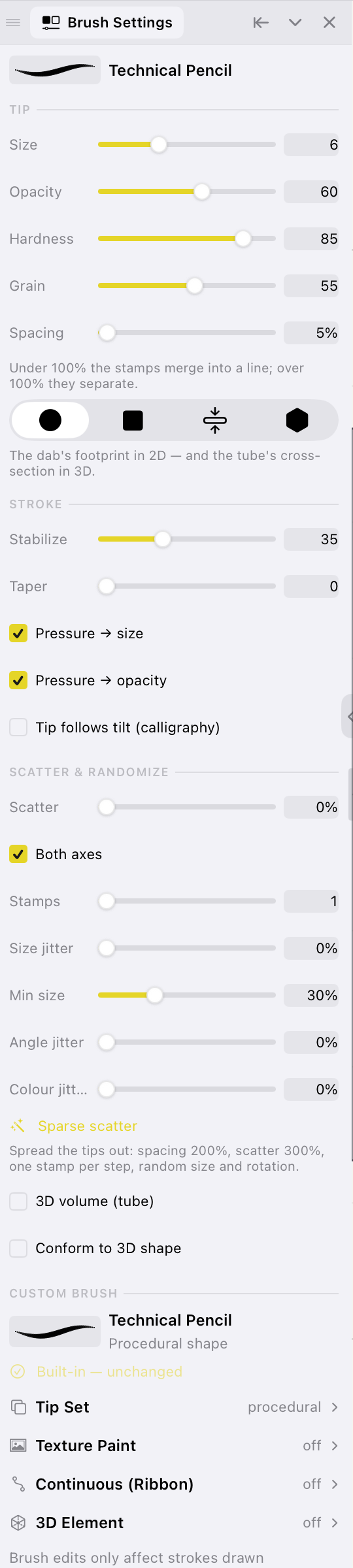
The rule that governs everything
A stroke bakes the whole brush it was drawn with — every numeric parameter — together with its random seed, so every random choice the stroke ever made is recorded rather than re-rolled. Re-opening a file re-rasterizes each stroke from that record, byte for byte, for as long as the file exists.
The invariant
"Brush edits only affect strokes drawn afterwards — never ones already on the canvas."
This is the wording the app itself carries at the foot of the Custom Brush section, and it is structural rather than a matter of care. Tips, textures, motifs and captured meshes are addressed by the hash of their own bytes, so different bytes are always a different asset: editing a brush's image mints a new one and the old identifier keeps resolving to the old pixels. The asset store is append-only and has no delete, so removing a brush can never strip the artwork drawn with it.
Three drawing systems, one winner
A brush may carry more than one system, but the renderer picks exactly one path per stroke, in this order:
| Precedence | System | What it does |
|---|---|---|
| 1 | 3D scatter | Instances real geometry along the stroke and conforms it to the 3D canvas. |
| 2 | Ribbon | Sweeps one continuous design along the path so it bends with the stroke. |
| 3 | Dabs | Stamps a tip — procedural, from a tip set, or carrying a paint texture. |
A brush that scatters 3D elements will not sweep its ribbon; a brush that sweeps a ribbon will not stamp its tip set. This is never silent: the Custom Brush section states which system is shadowed, and the preview swatch is drawn in the same precedence order, so the mark you see is the mark the canvas will make.
Which tools paint
Three tools take their brush from the shared brush library, listed in the Sub Tool panel:
- Draw — the raster paint brush.
- Shape — draws fitted shapes with the current brush.
- Vector Pen — strokes an editable vector path with the current brush.
These are the paint tools: they show the full Brush Settings panel, and a brush tuned for one behaves identically in the other two.
Two more tools mark the canvas without painting. The Eraser rubs out pixels; its mark is not brush-driven and reads only its own size. The Blend tool has no pigment at all — it mixes colours already on the canvas.
Map of this module
| Page | Covers |
|---|---|
| Draw tool | The painting tool itself and its controls. |
| Tip | Size, Opacity, Hardness, Grain, Spacing, cross-section. |
| Stroke | Stabilize, Taper, the pressure routes, tilt-following. |
| Scatter & Randomize | Scatter, Stamps, the jitters, the 3D checkboxes. |
| Brush library | The Sub Tool panel: choosing, saving, organising. |
| Bundled brushes | All 51 shipped brushes, category by category. |
| Custom brushes | Tip sets, texture paint, ribbons, 3D elements. |
| 3D scatter brushes | Painting instanced geometry along a stroke. |
| Brush files | Export, import, and Photoshop .abr packs. |
| Eraser | The eraser and its options. |
| Blend | Blend, Blur and Fingertip. |